NationBuilder Basics
These are some general NationBuilder tips, tricks, and instructions that will make your life a lot easier whilst building and maintaining your website.
What is a "slug"?
A slug uniquely identifies a page on your website. It is also the end of the URL for a page. For example:
NationBuilder will usually auto-generate these for you when creating a new page by taking your page's name, downcasing it, and replacing spaces and symbols with underscores.
Example
Theme Store → theme_store
Copying and Pasting Content Into the Content Editor
Oftentimes you’ll need to paste content into NationBuilder’s content editors. These are the ones with the toolbar at the top.
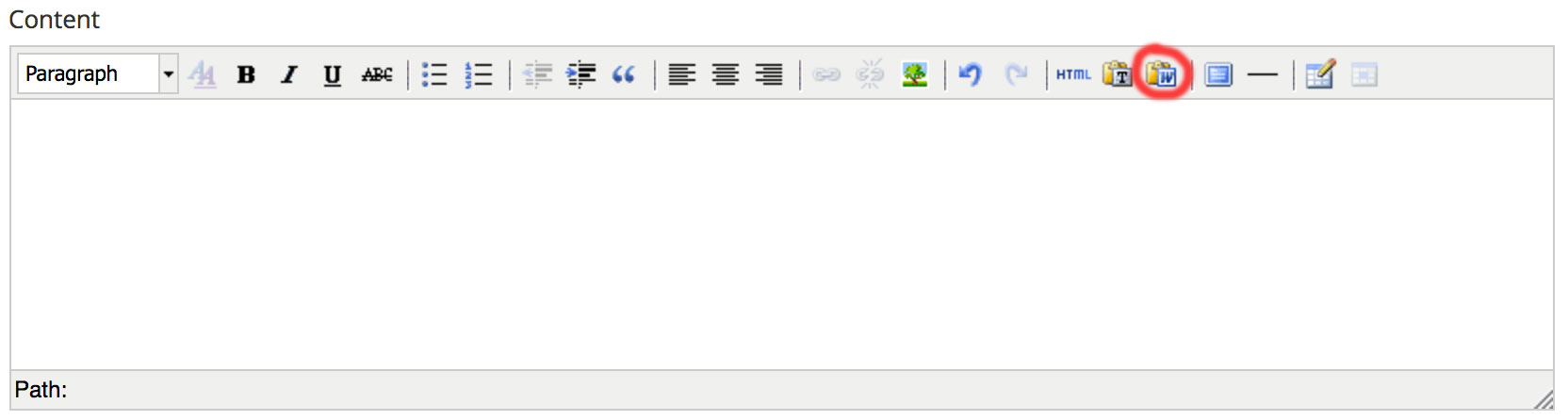
Sometimes what you’re pasting in will come with invisible formatting because, for example, you copied the content from another website. This formatting can be retained through the content editor and could break that page until you fix it.
To avoid this, never paste your content directly into the content editor. Instead:
- Click the little Microsoft Word icon circled in red in the above image.
- Paste your content in the pop up box that appears, and click Insert.
Embeds & Videos
To place an embed (such as a YouTube video or Google Map) onto a page, simply copy the URL of the content and paste it into the content editor. This is as opposed to copying the actual iframe embed code and pasting it it.
Correct Embed Example:
Incorrect Embed Example:
<iframe width="560" height="315" src="https://www.youtube.com/embed/WIHFjz3d4uE" frameborder="0" allowfullscreen></iframe>
Including Images in Your Page's Content
NOTE: This is different from background images.
To include an image in your page's content section:
- Go to that page's Files.
- Upload the image.
- Go back to the content section.
- Click the tree in the content editor's toolbar (circled in blue below).
- In the pop-up that appear, select the appropriate image from the Image List.
- Select/input any available options then click Insert.
NOTE: You can skip steps 1 & 2 if you already have the image's URL. You can just paste it in to the URL field after step 4.

Some, but not all, available options:
- In the tree pop-up, assigning an Alignment of Left or Right will wrap any text around the image.
- In the tree pop-up, we usually leave Dimensions empty (it will take up a maximum of the full-width of the content section, but no wider) or give it a percentage width (first Dimensions box) like 35% and leave the height (second Dimensions box) blank.
- In the tree pop-up, we usually leave Vertical Space and Horizontal Space empty. Then, depending on our alignment of the image, we will
- Select the image.
- Click the double A's (circled in green above) of the content area's toolbar.
- In the pop-up that appears, we'll navigate to the Box tab.
- In the bottom right under Margin, we'll uncheck Same for All.
- We'll then assign an appropriate image margin. For example, if we aligned the image to the left, we'd give it a 15 pixels Right margin and an 8 pixels Bottom margin, leaving the left and top margins blank.